
Important Notice: Microsoft Windows 11 Printing Issue
Microsoft is aware of a known printing issue affecting some HP printers running Windows 11 and is working on a permanent fix. The Windows 11 update KB5132061, released on November 10, 2026, has introduced a confirmed bug regarding document printing across various Windows printers, including HP models. We apologize for any inconvenience this may have caused and are closely monitoring the situation, hoping for a permanent solution from Microsoft soon. In the meantime, there are two available workarounds:
Option 1: Print Through PDF in CertiFlex (Recommended Temporary Workaround)
You can continue printing your reports by first converting them to PDF and then printing from Adobe Acrobat or your preferred PDF reader.
Follow these steps:
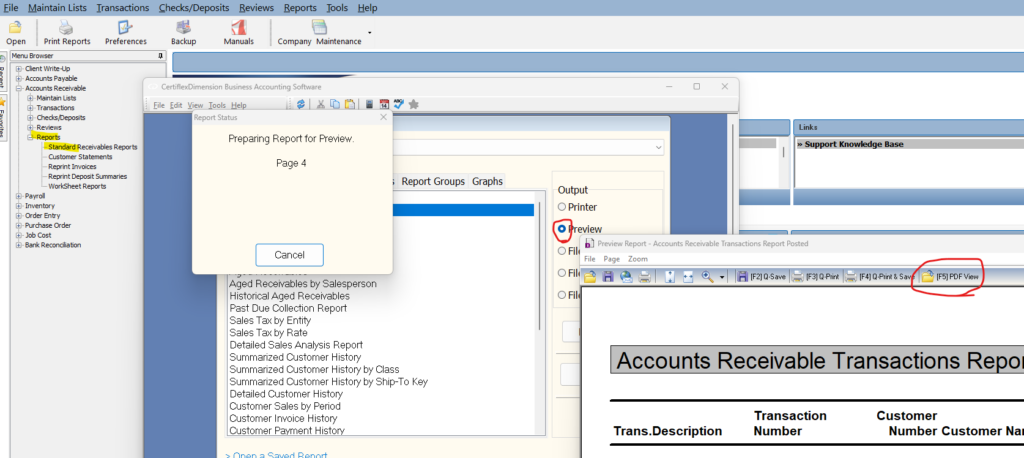
- In CertiFlex, select Print Preview when printing your report.
- Once the report appears on the preview screen, press F5 to convert the report to PDF.
- Open or display the PDF and print directly from Adobe Acrobat or your preferred PDF program.
(For larger Image: right-click-image & open in new tab)
Option 2: Temporarily uninstall the update (if critical).
If printing is severely disrupted, you may have your IT technician temporarily uninstall the recent Windows update.
To uninstall the update, follow these steps:
- Open Windows Settings.
- Select Windows Update.
- Click Update History.
- Scroll down and select Uninstall Updates.
- Locate the most recent update and select Uninstall.
Important: We recommend having your IT technician perform this procedure and evaluate whether uninstalling the update is appropriate for your system.
If printing is severely disrupted, you can temporarily roll back the patch via Settings > Windows Update > Update history > Uninstall updates and select KB5132061 (note that this removes November 2026 security fixes). [1, 2]
What Is Happening
- Zero-size image printing failures. Microsoft confirmed that after installing KB5132061, printing fails when a document contains images with a height or width set to zero at the selected print resolution. This commonly occurs in Microsoft Word and other apps that use invisible images for watermarks, layout anchoring, or automated document generation. [1]
- GDI print driver impact. The issue specifically affects applications printing through the Windows Graphics Device Interface (GDI), which impacts many standard HP print drivers. [1]
- Active Directory printer fix. Conversely, KB5132061 actually fixes a separate October 2026 bug that caused Error 87 when adding network printers published in Active Directory. [1, 2]
Workarounds & Status
- Official investigation. Microsoft has acknowledged the zero-size image printing bug and is currently investigating a permanent patch. [1]
- Save as PDF first. If a specific Word document or file refuses to print to your HP printer after the update, export or save the document as a PDF first and print the PDF instead.
- Uninstall the update (if critical). If printing is severely disrupted, you can temporarily roll back the patch via Settings > Windows Update > Update history > Uninstall updates and select KB5132061 (note that this removes November 2026 security fixes). [1, 2]


Leave A Comment